Flowlink Cipher 1.10
This section describes all changes made to the application in the 1.10 series of releases.
1.10.0
June 2026
General Notices
☑ Flowlink Cipher 1.10.0 introduces a new graphical user interface (GUI) library to the application which effects every screen and pop-up dialog box. This newer and more modern library provides a variety of functional advantages over the previous GUI library.
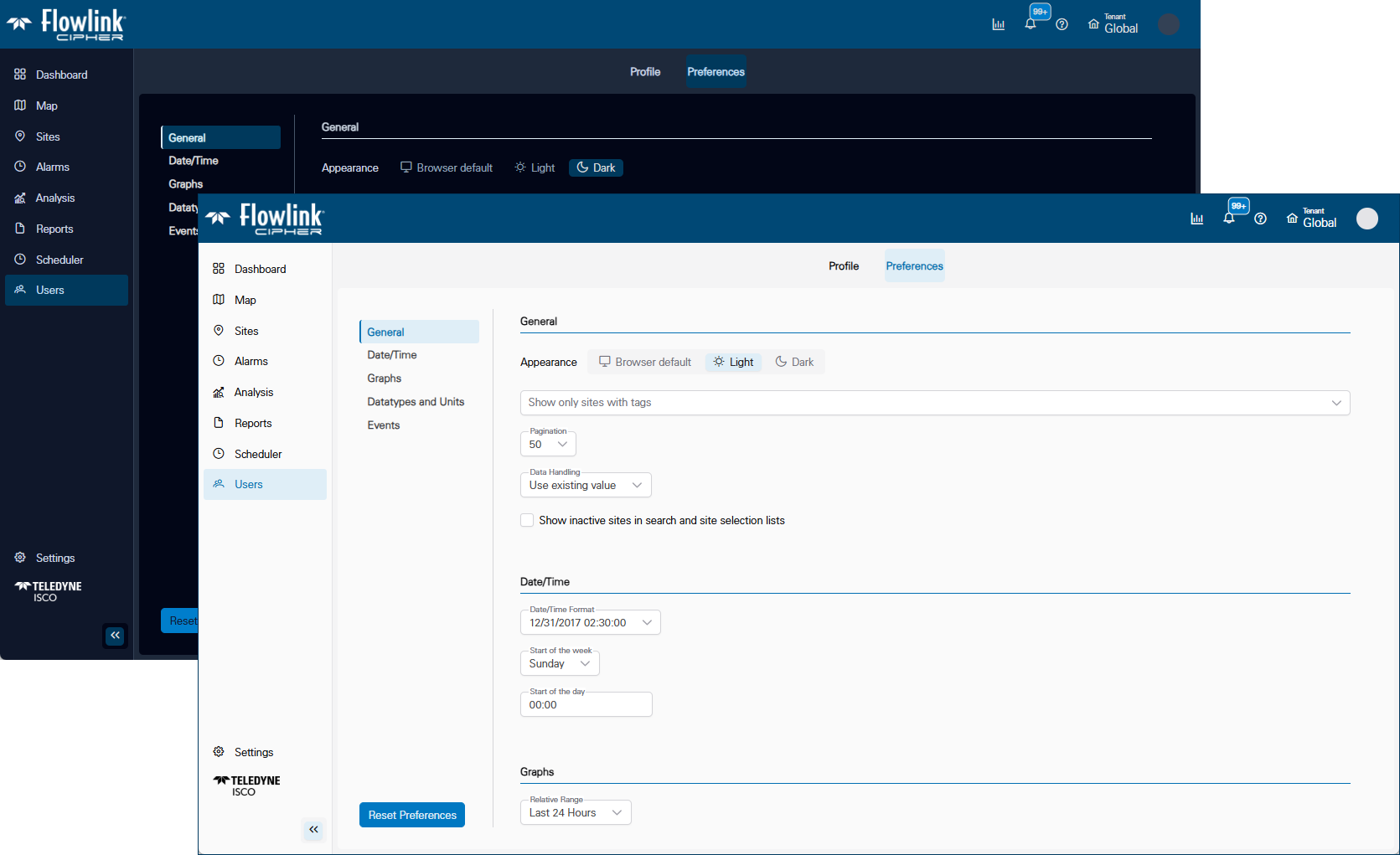
One important new feature of the GUI is the Preferences > General > Appearance option for the GUI theme. There is a Light theme and a Dark theme. There is also an option to use the 'Browser default', where Flowlink Cipher will follow the Light/Dark preference the user has chosen for the browser. Or the user can select Light or Dark directly.
The introduction of the new GUI library provided the opportunity to improve consistency of appearance of the GUI elements throughout the application. The blue function bar was added to several screens. This function bar generally provides the action functions on the left end of the bar with the display options on the right end of the bar.
Most of the screens retain their familiar layout except for new buttons and GUI styles. However, some of the screens have been improved with new designs. For example, the Reports function design has been improved by abandoning the multi-step wizard design for a new design that provides a more iterative procedure of setup > preview > edit > save.
Users > Preferences: This screen is redesigned with 5 tab sections. The new Appearance control provides options for Light and Dark theme as seen in the images below.
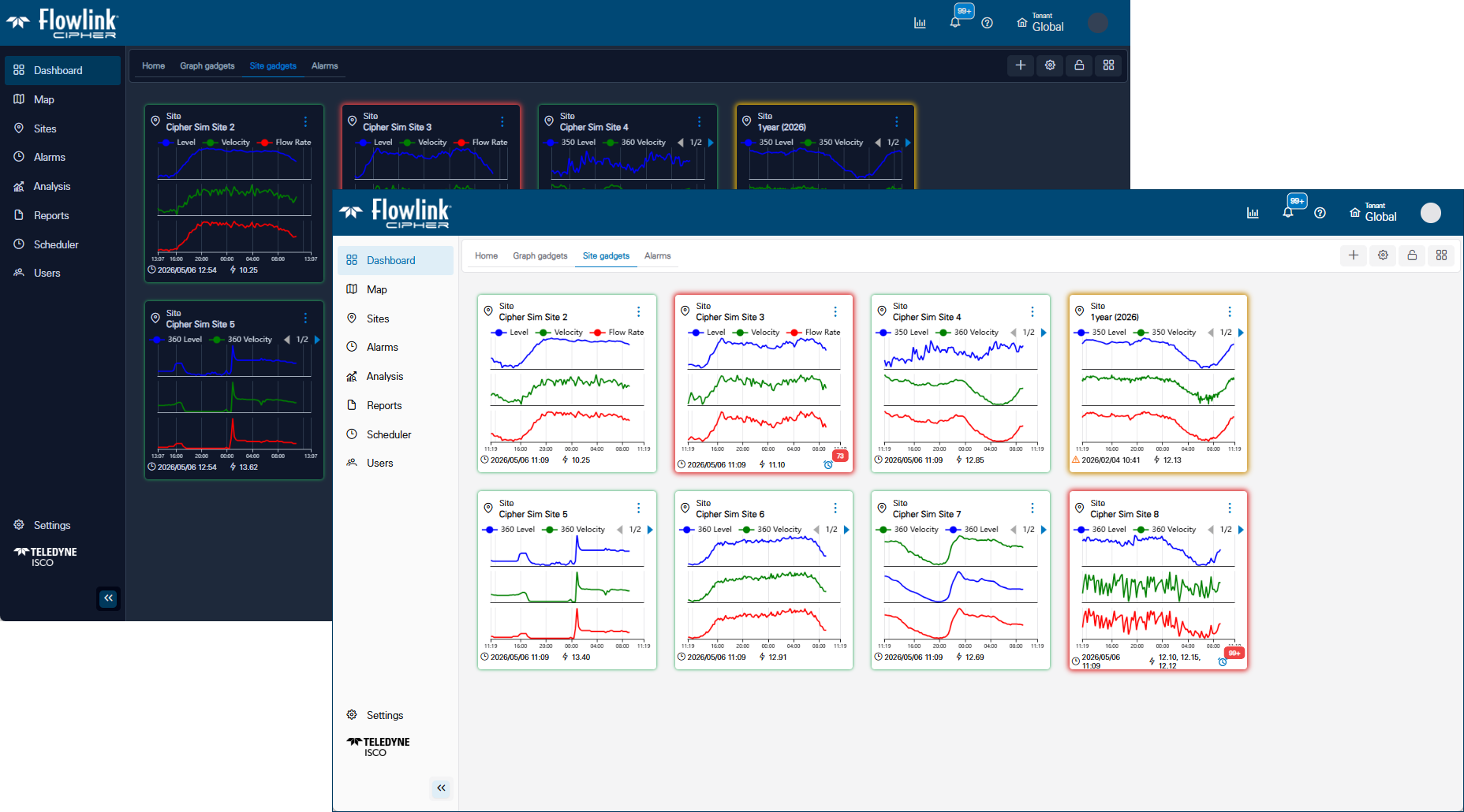
Dashboard: Site gadgets for sites with no unresolved Alarm or Silent Site events will be outlined in green.
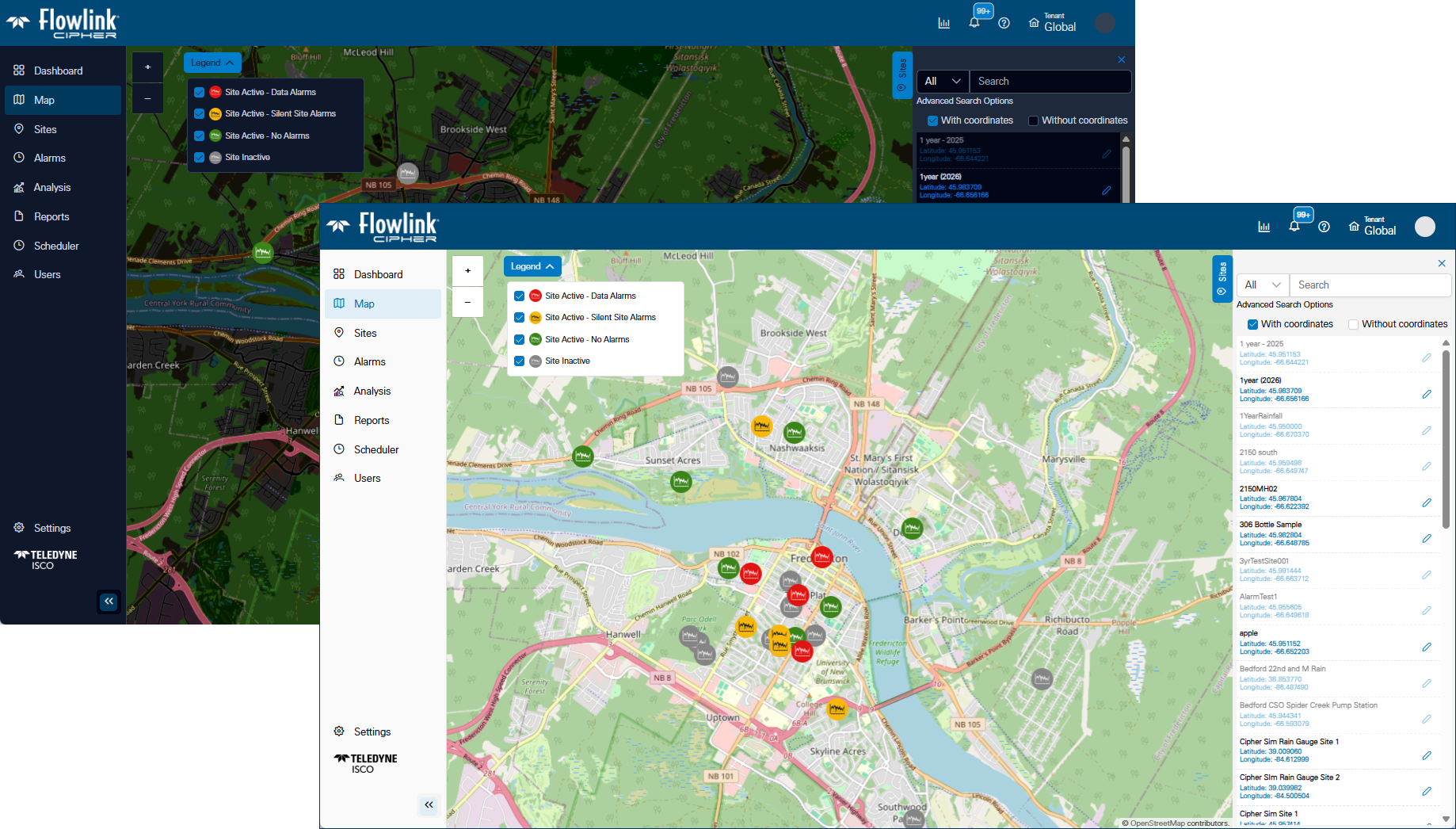
Map: One-click on an icon to find the site in the Sites panel. Double-click to zoom to the site on the Map.
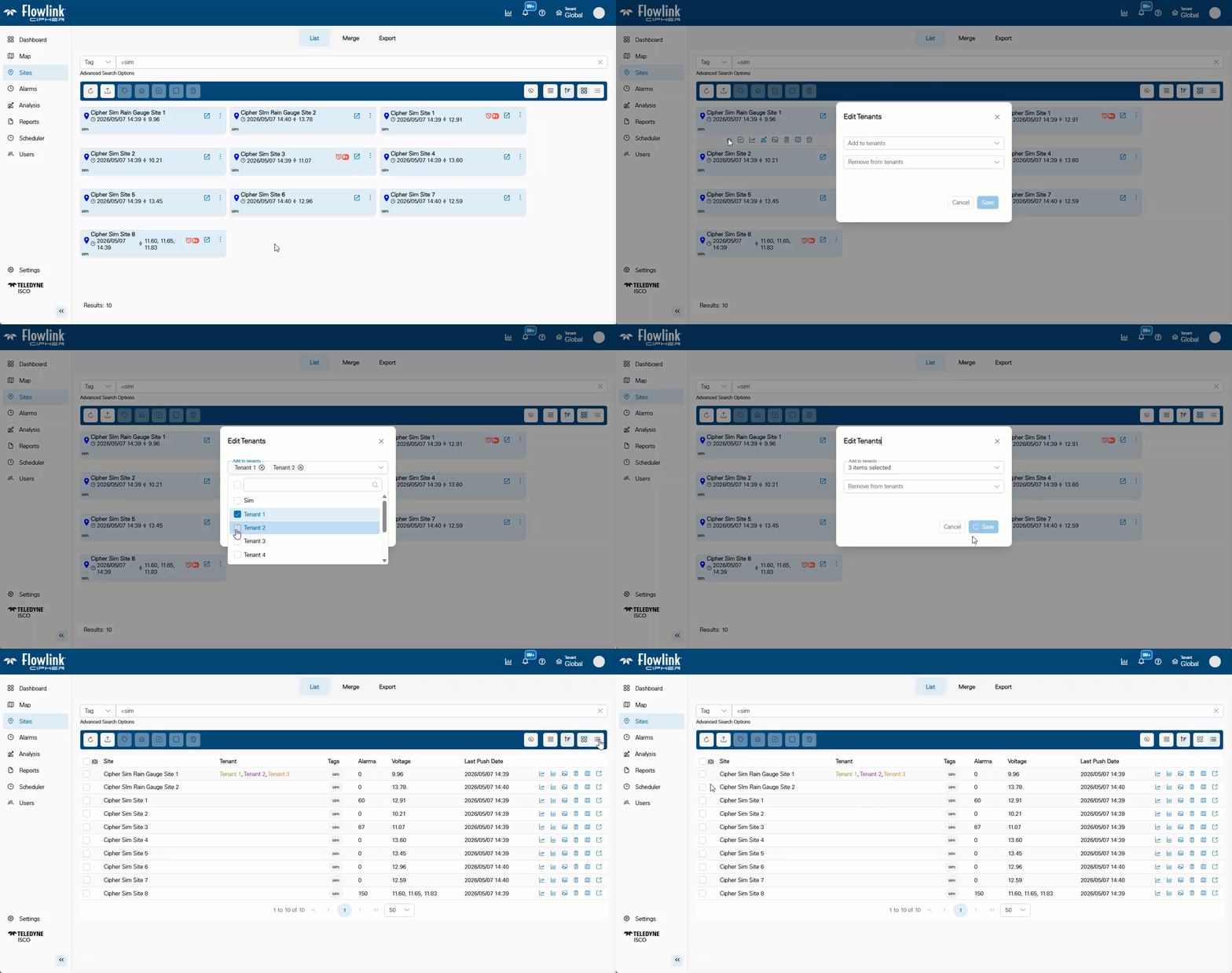
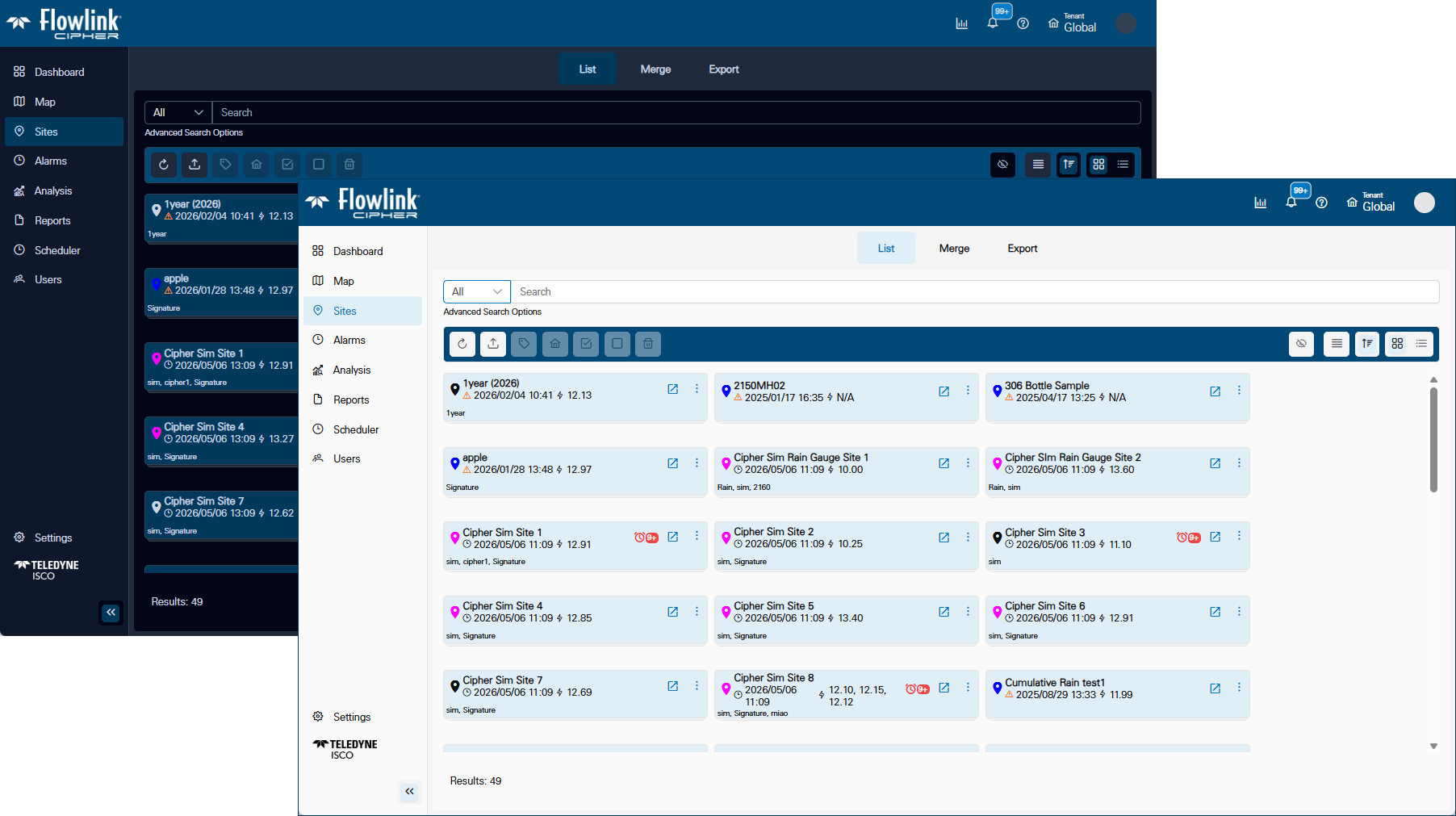
Sites > Grid View: Assign a site to multiple tenants. Ellipsis menu on site card now contains the same functions as the drop panel.
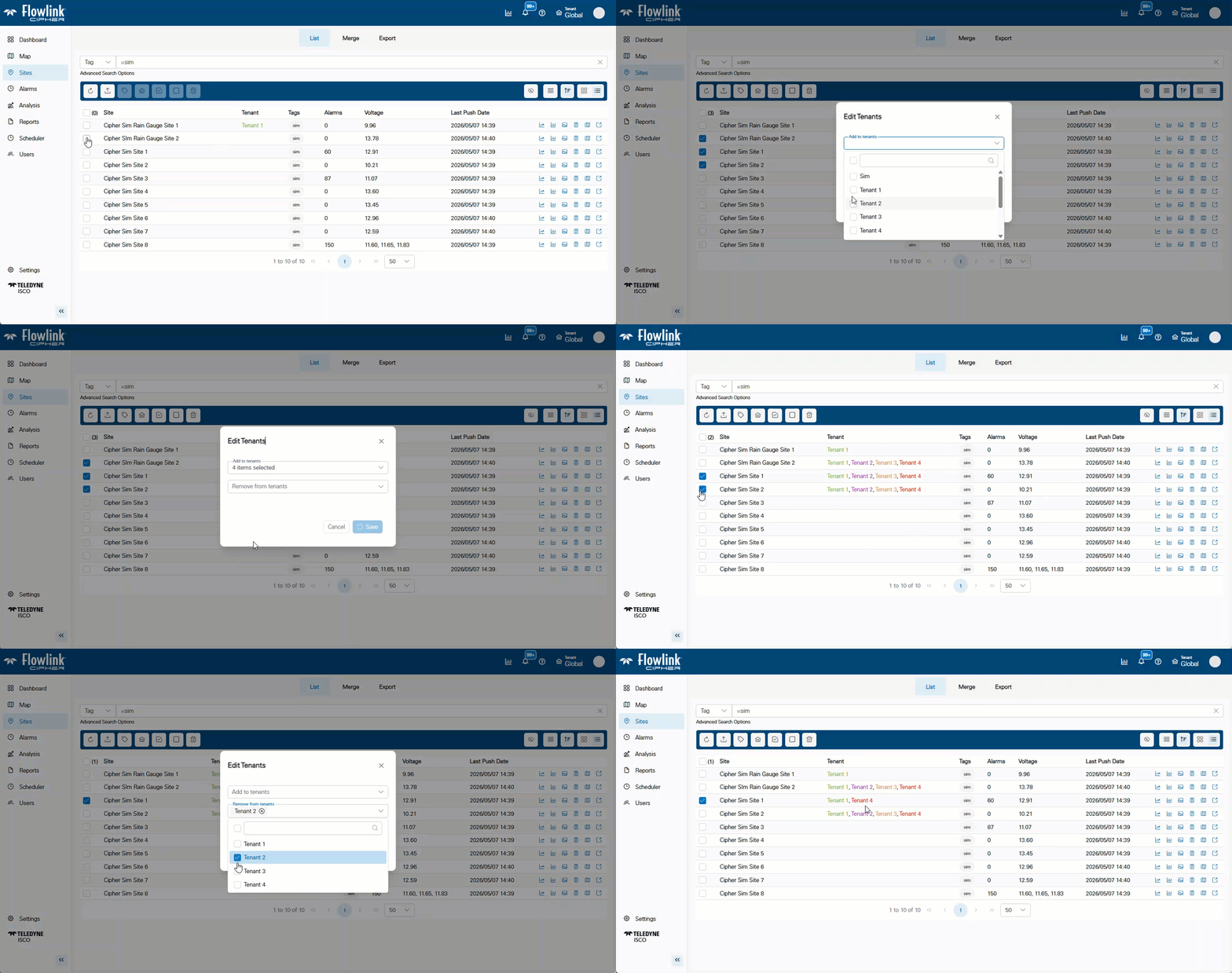
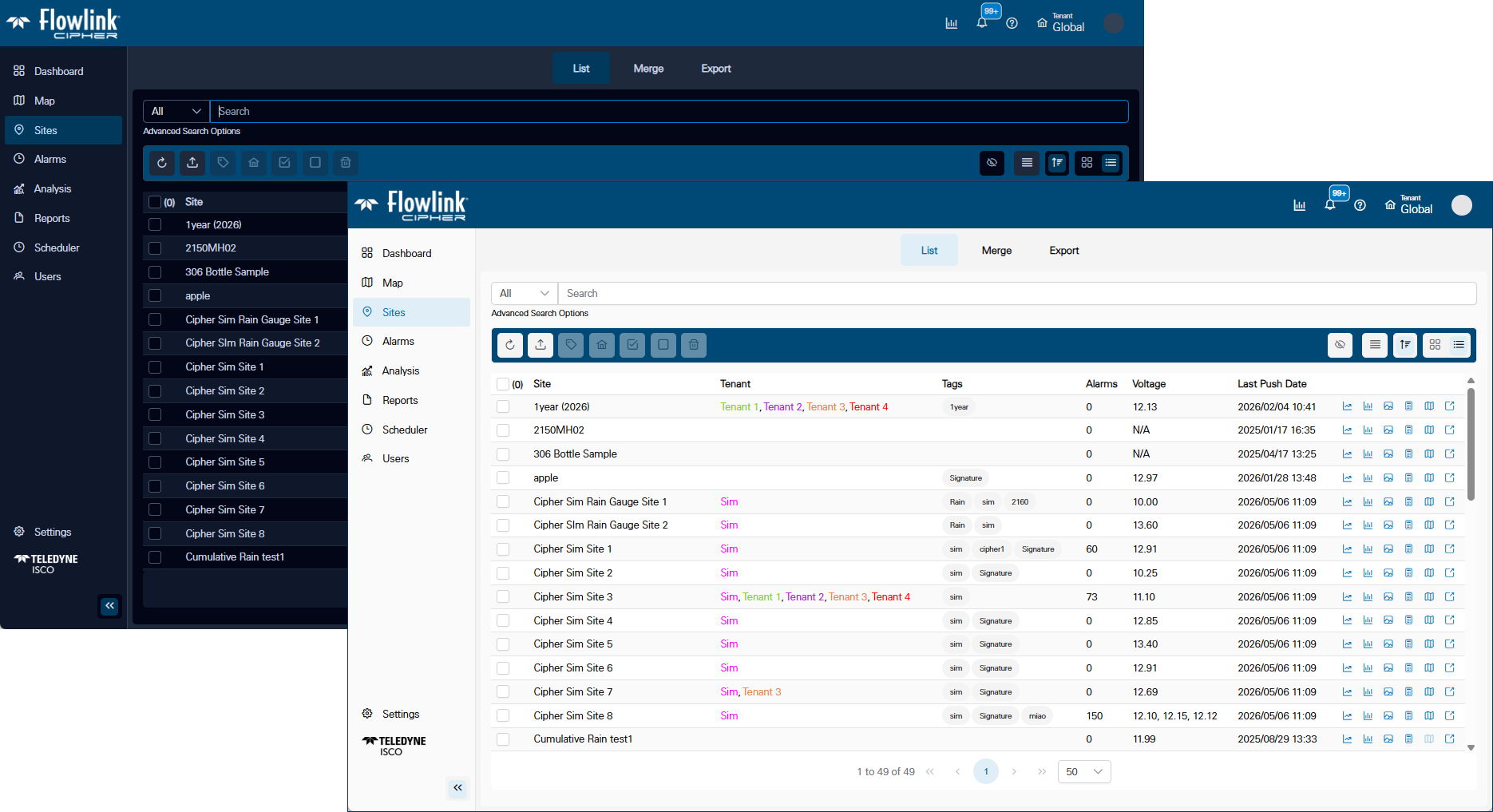
Sites > List View: Assign multiple selected sites to multiple Tenants.
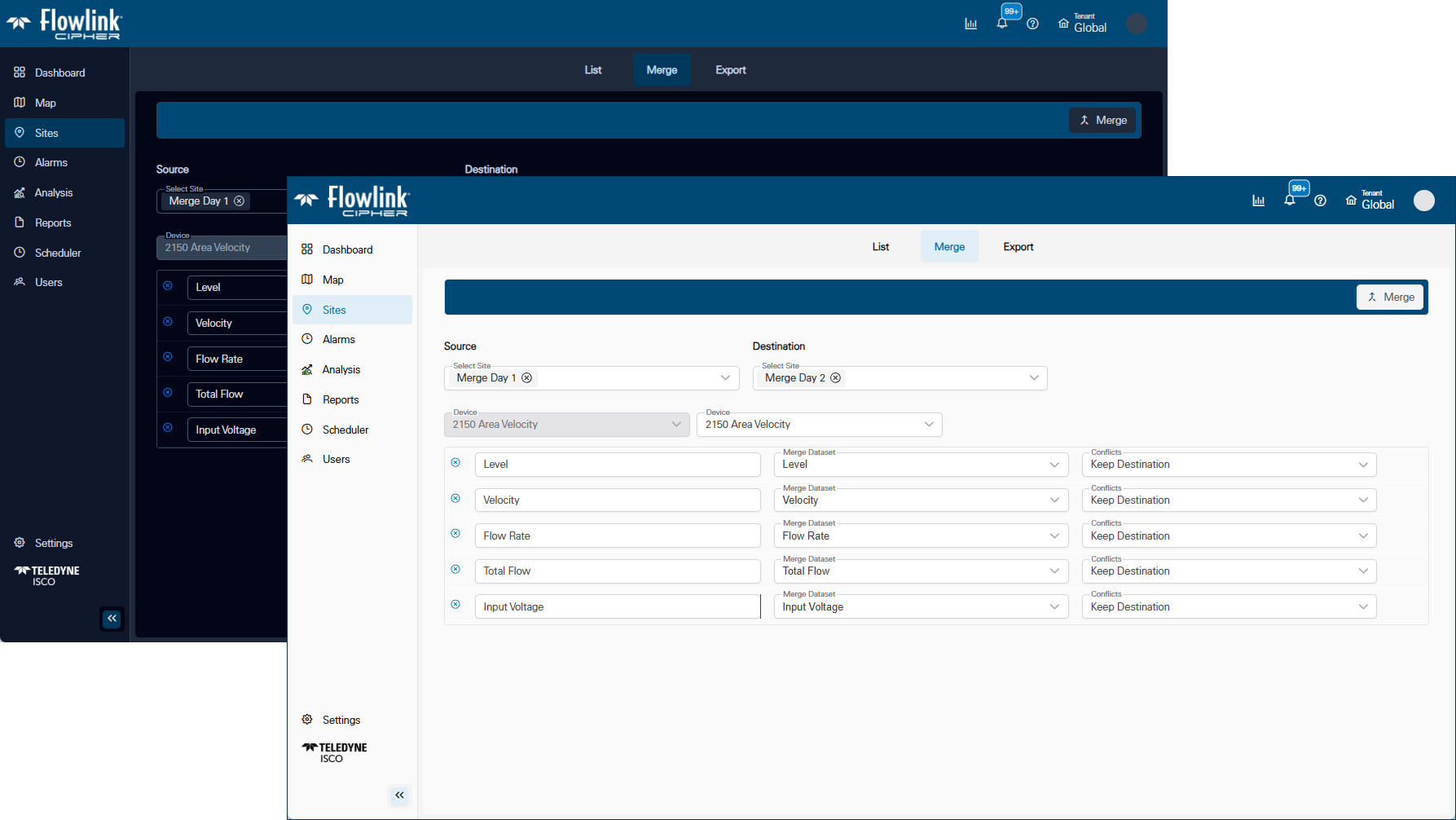
Sites > Merge: The Merge function button will not enable until all inputs are defined.
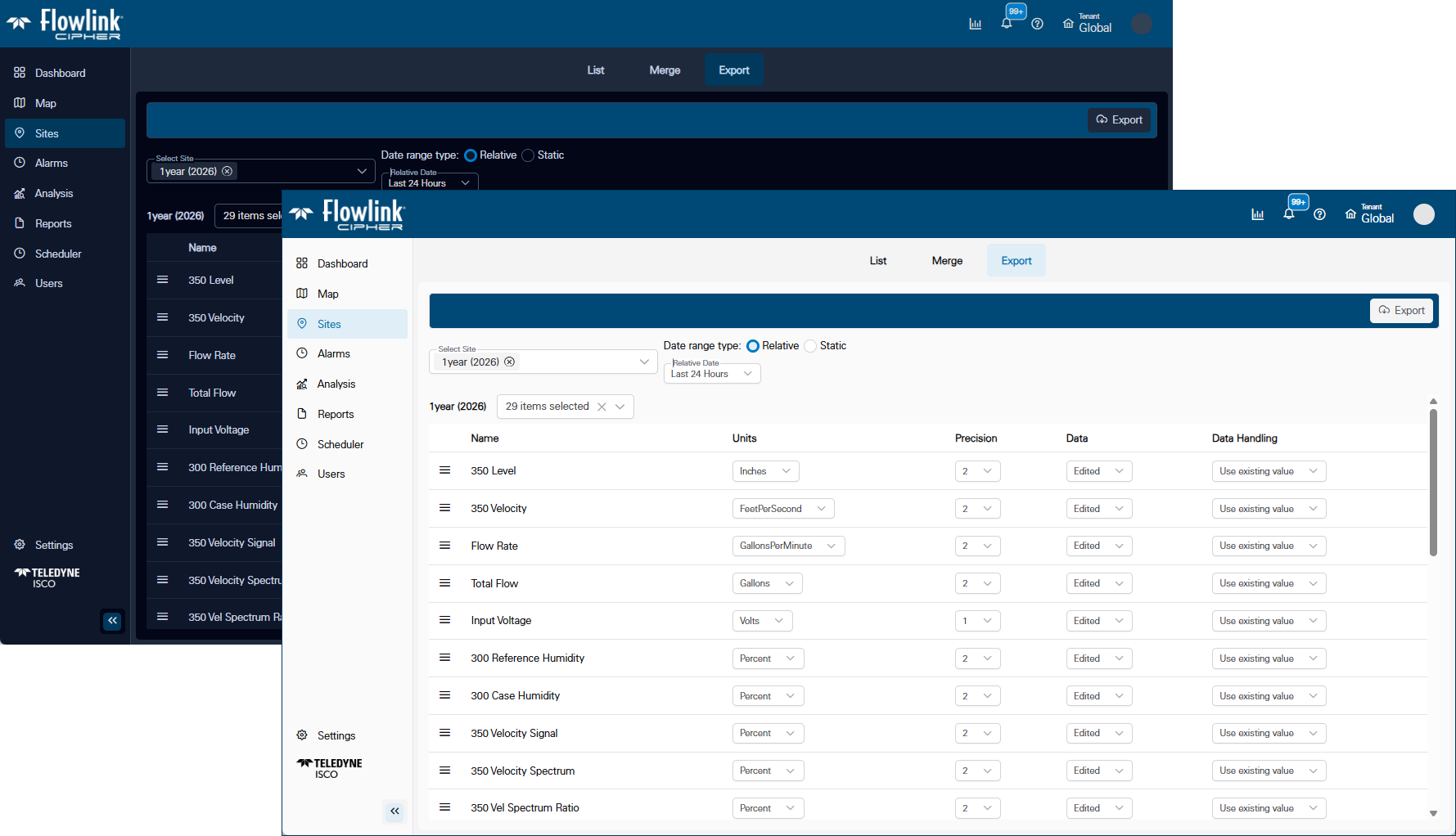
Sites > Export: Sort the quantities up/down using the grab handles, to control the order of the quantities in the exported CSV file.
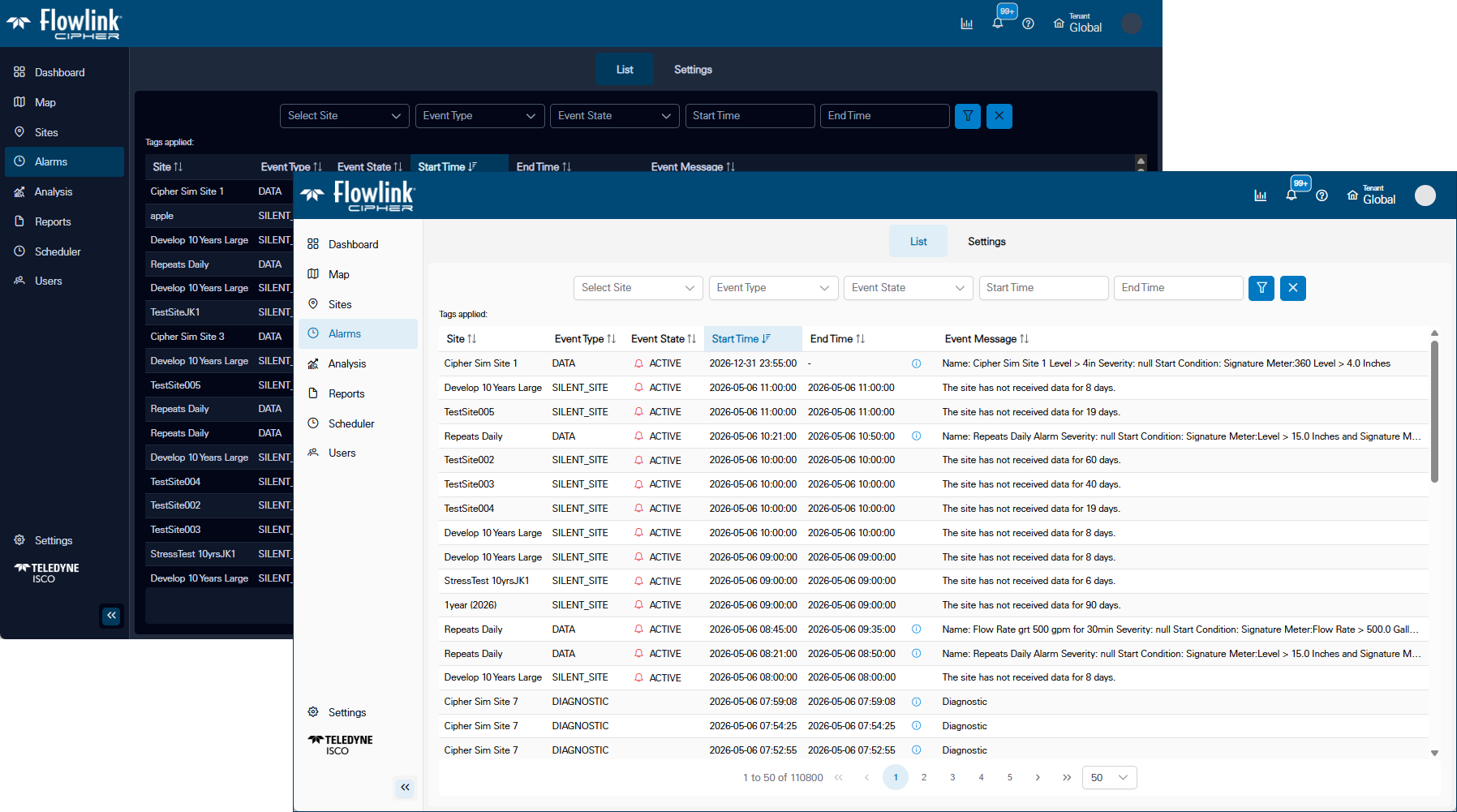
Alarms > List: Click the bell icons to change the status of the DATA and SILENT_SITE events. Click the information icon to open the pop-up display of the details of the DATA, PROGRAM, SUMMARY, DIAGNOSTIC and HISTORY events.
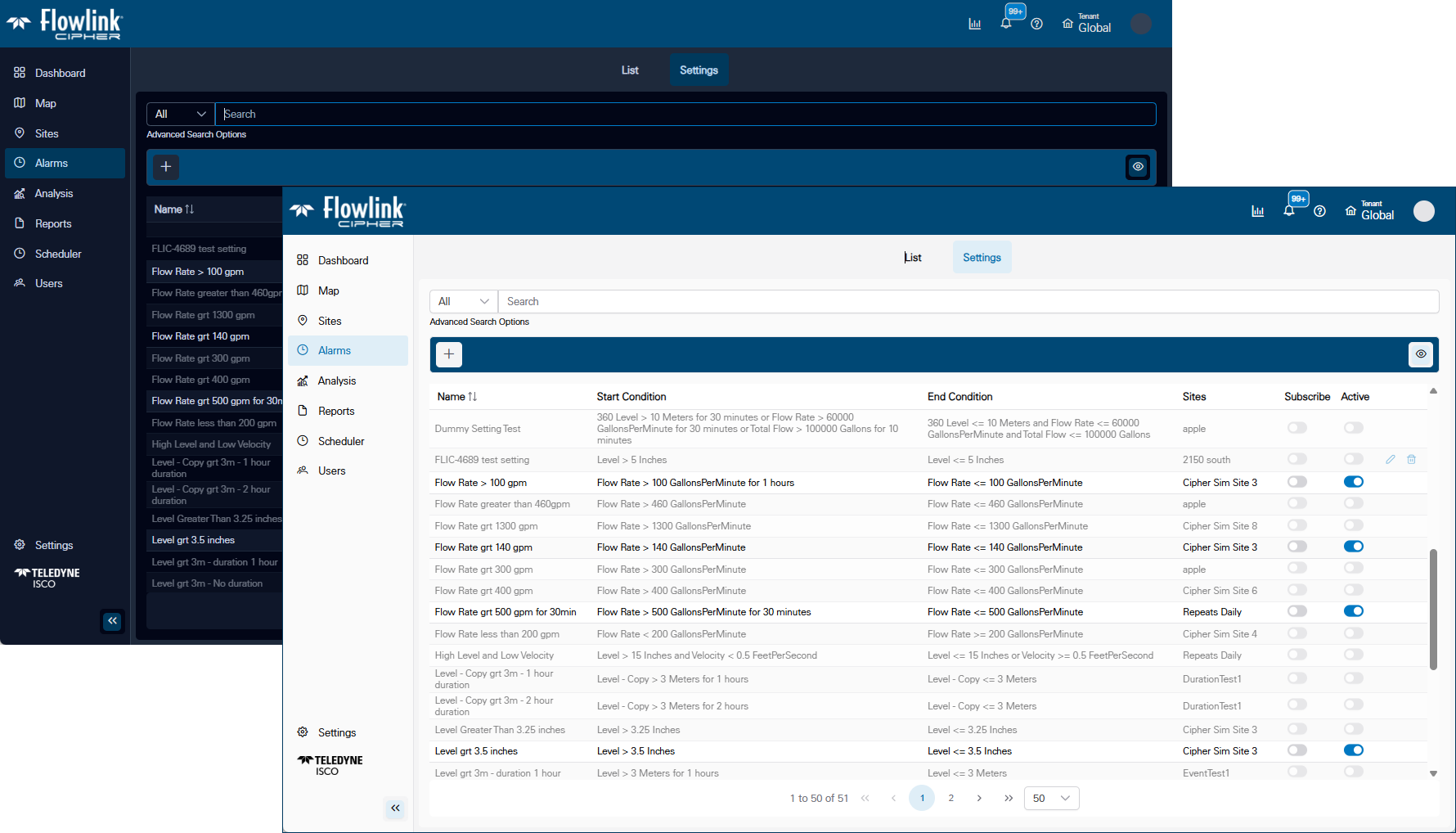
Alarms > Settings: The 'Create alarm setting' function button is now on the left end of the blue function bar. The 'Hide inactive' button is now on the right end of the function bar.
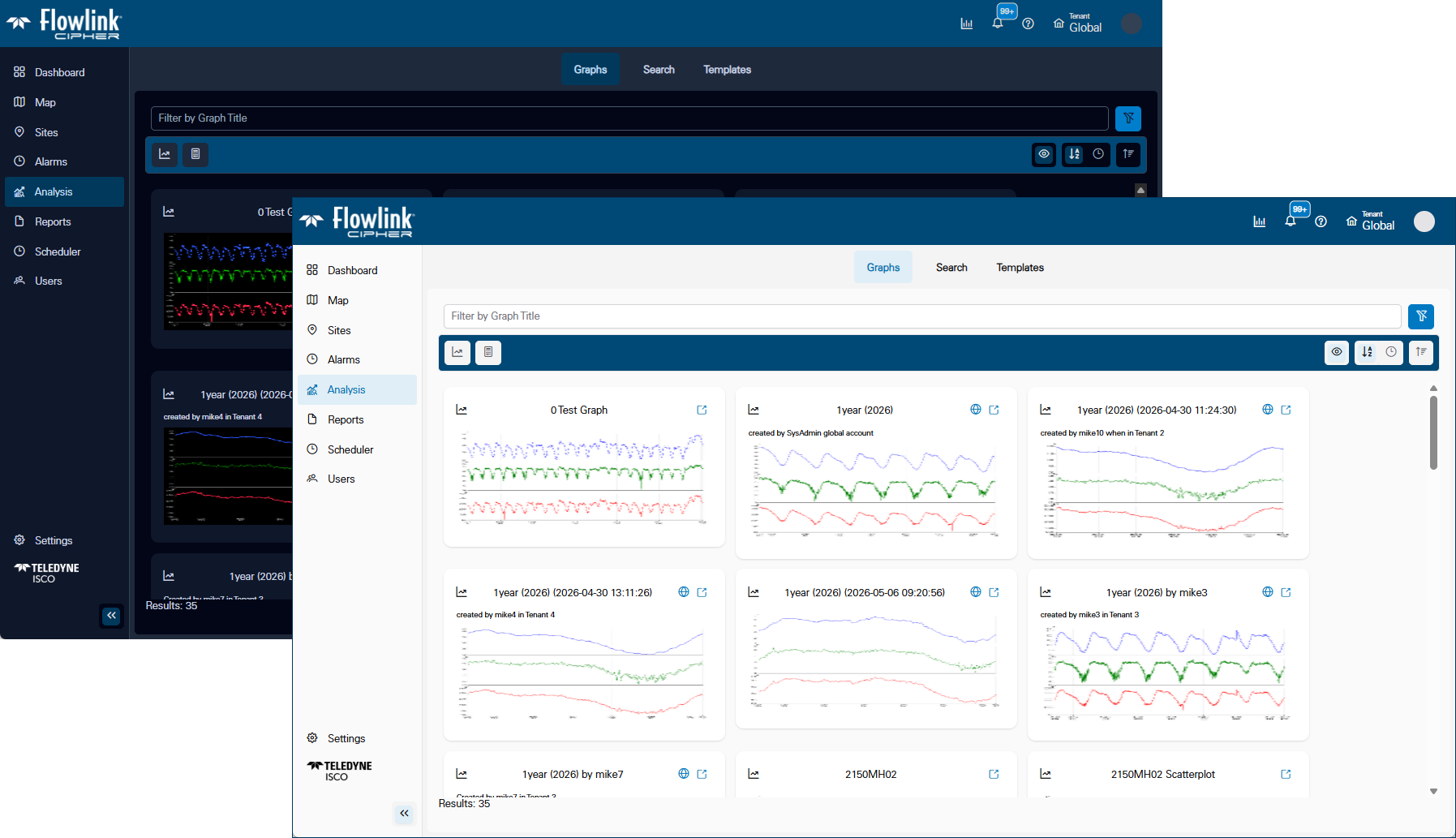
Analysis > Graphs: Buttons for 'Create a new graph' and 'Create a new dataset' are now on the left end of the blue function bar. Display options are now on the right end of the blue bar.
Analysis > Graphs > Create a new graph: The blue function bar has been added with the 'Create' function. The fields to define the graph name, the Share option and the Template options have been added to the Create graph pop-up dialog box. The Create button becomes the Update button when editing an existing graph.
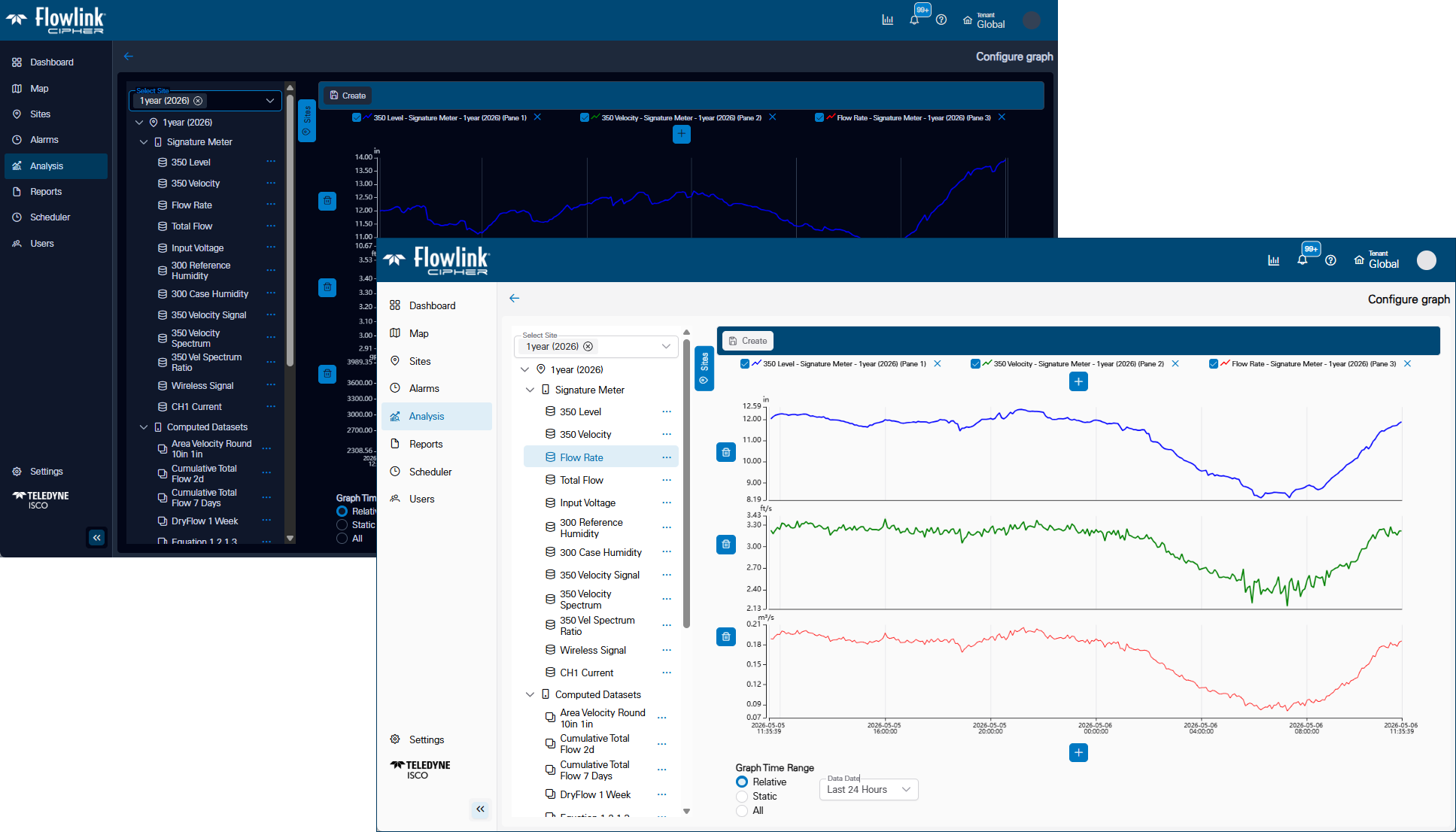
Analysis > Graphs > Compute Dataset: The panels for the functions have been updated to improve consistency.
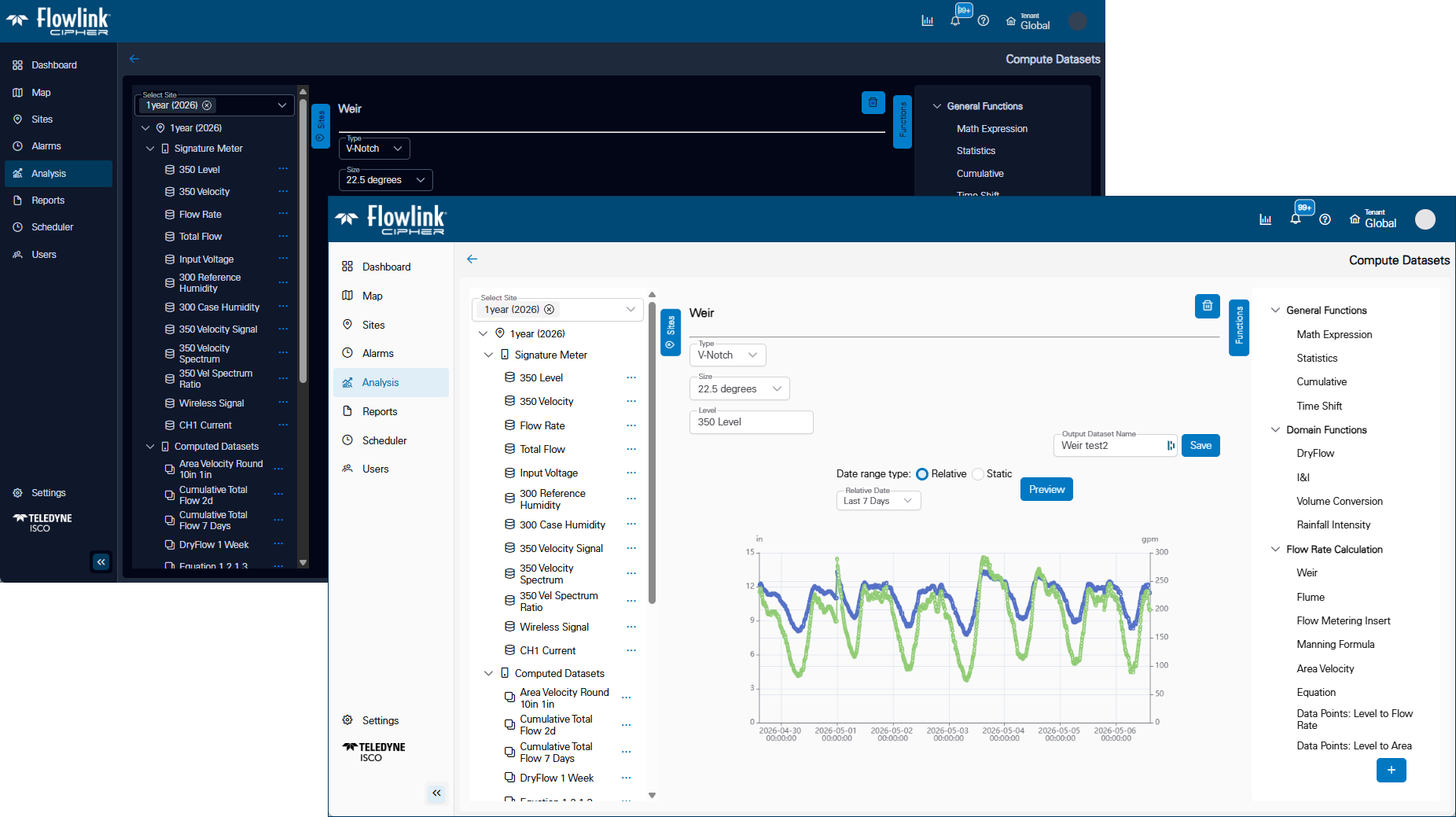
Analysis > Search: Clicking on a quantity in the data tree will now add the quantity to the search definition row.
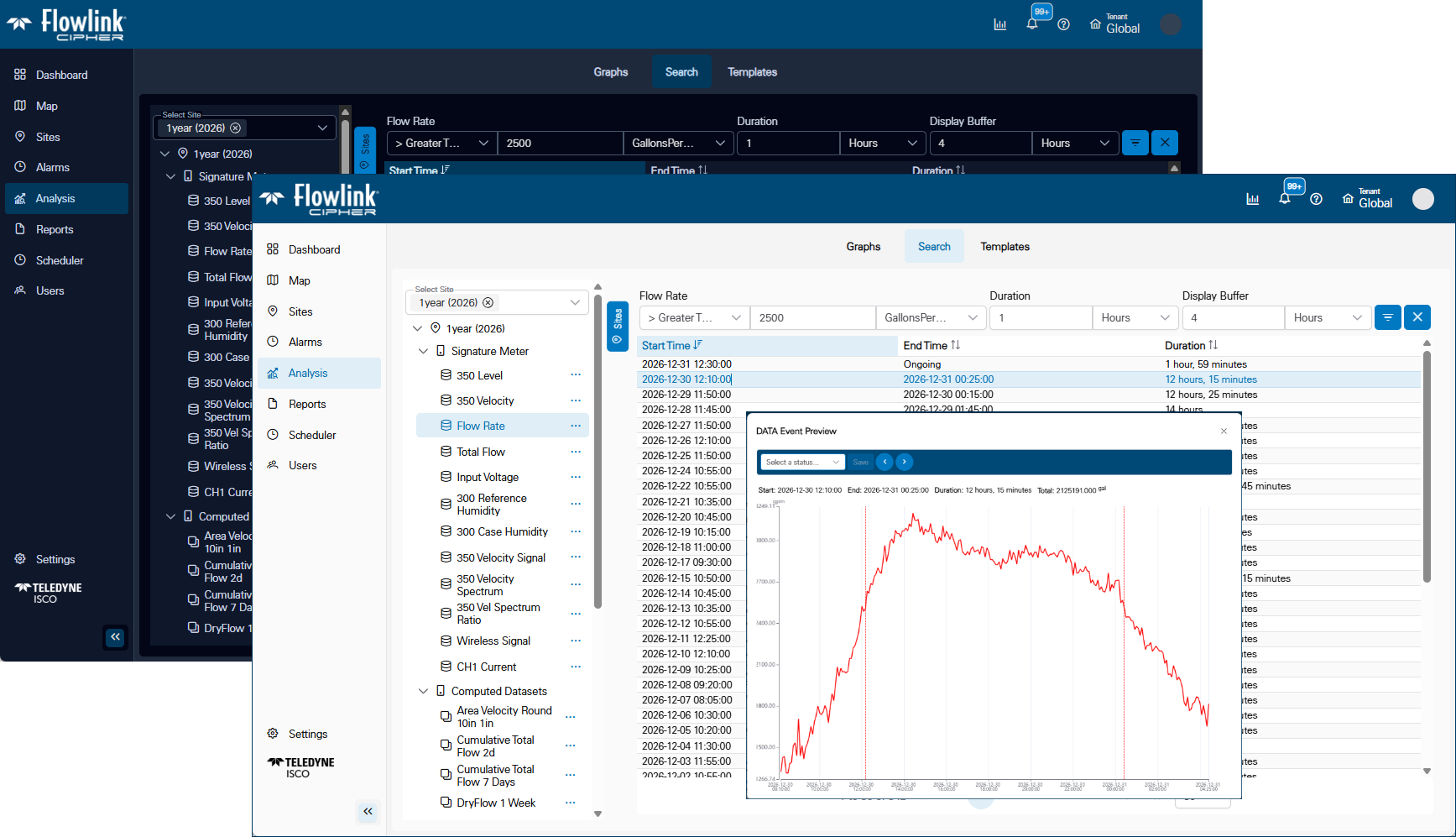
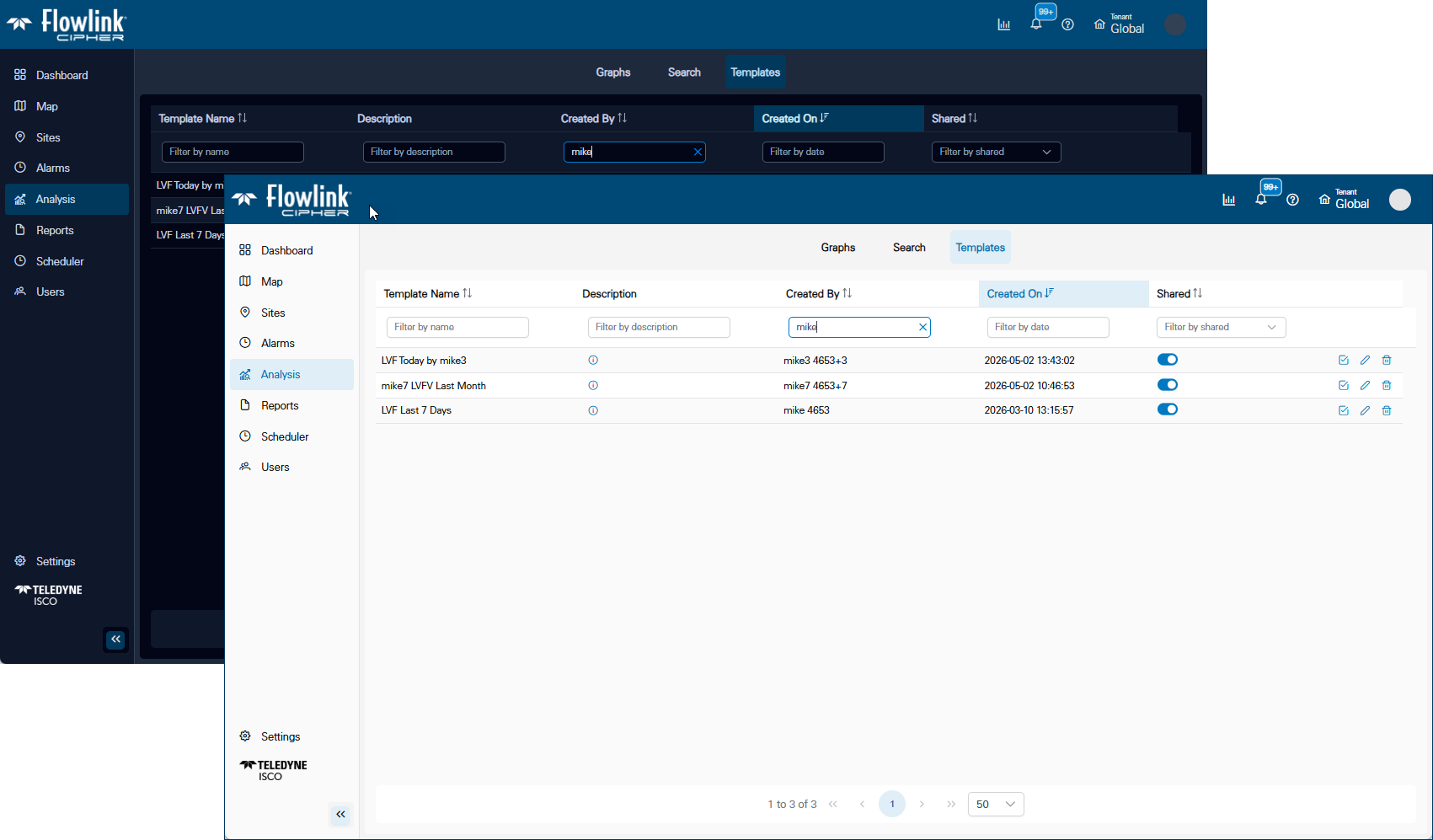
Analysis > Templates: The Shared column has been added to provide easier access to the Share option for the graph templates. Filtering of the table has been added.
Reports > List: The previous filter and clear functions have been replaced with automatic and dynamic filtering as the user enters filter criteria into the filter fields for each column.
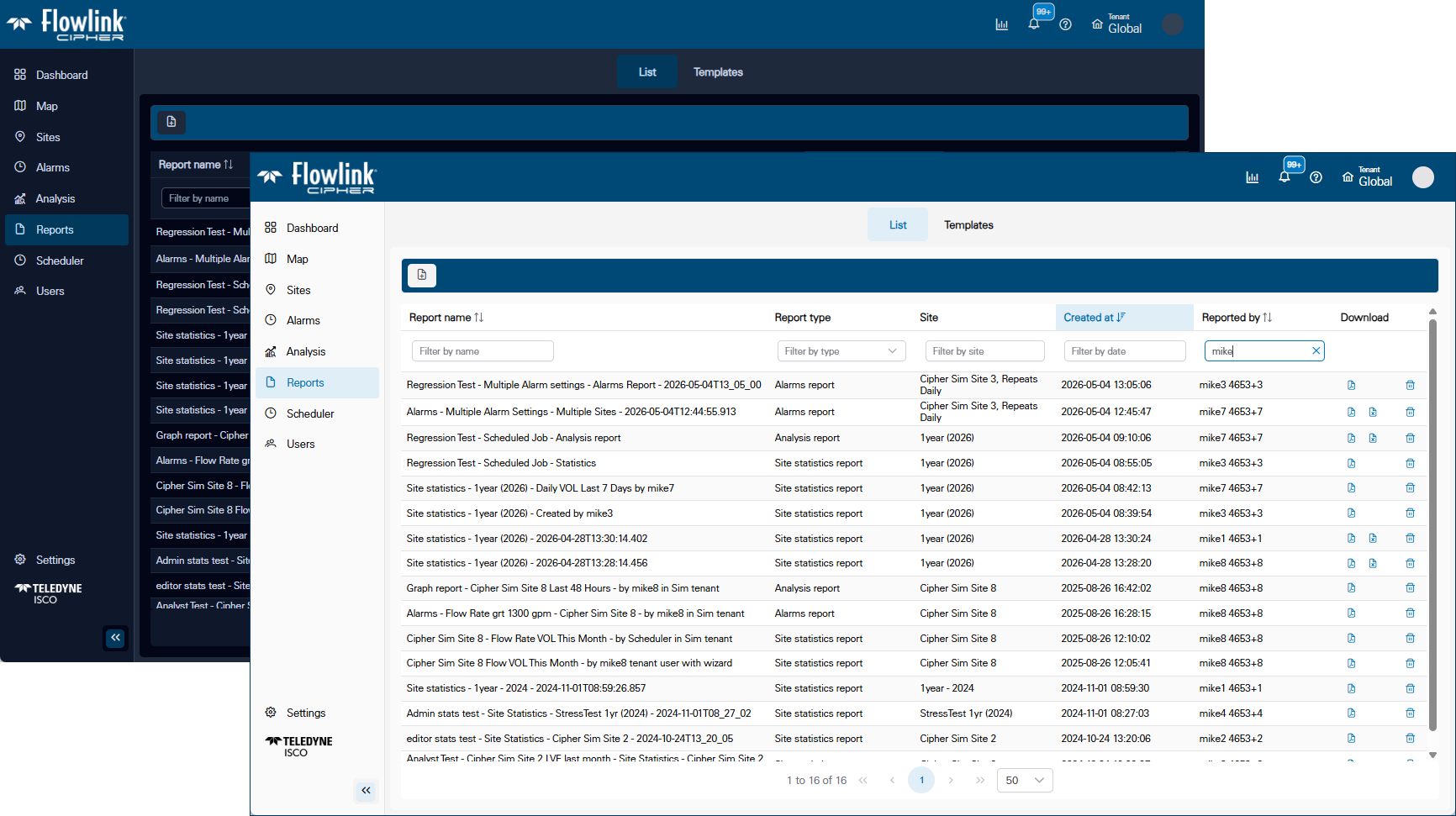
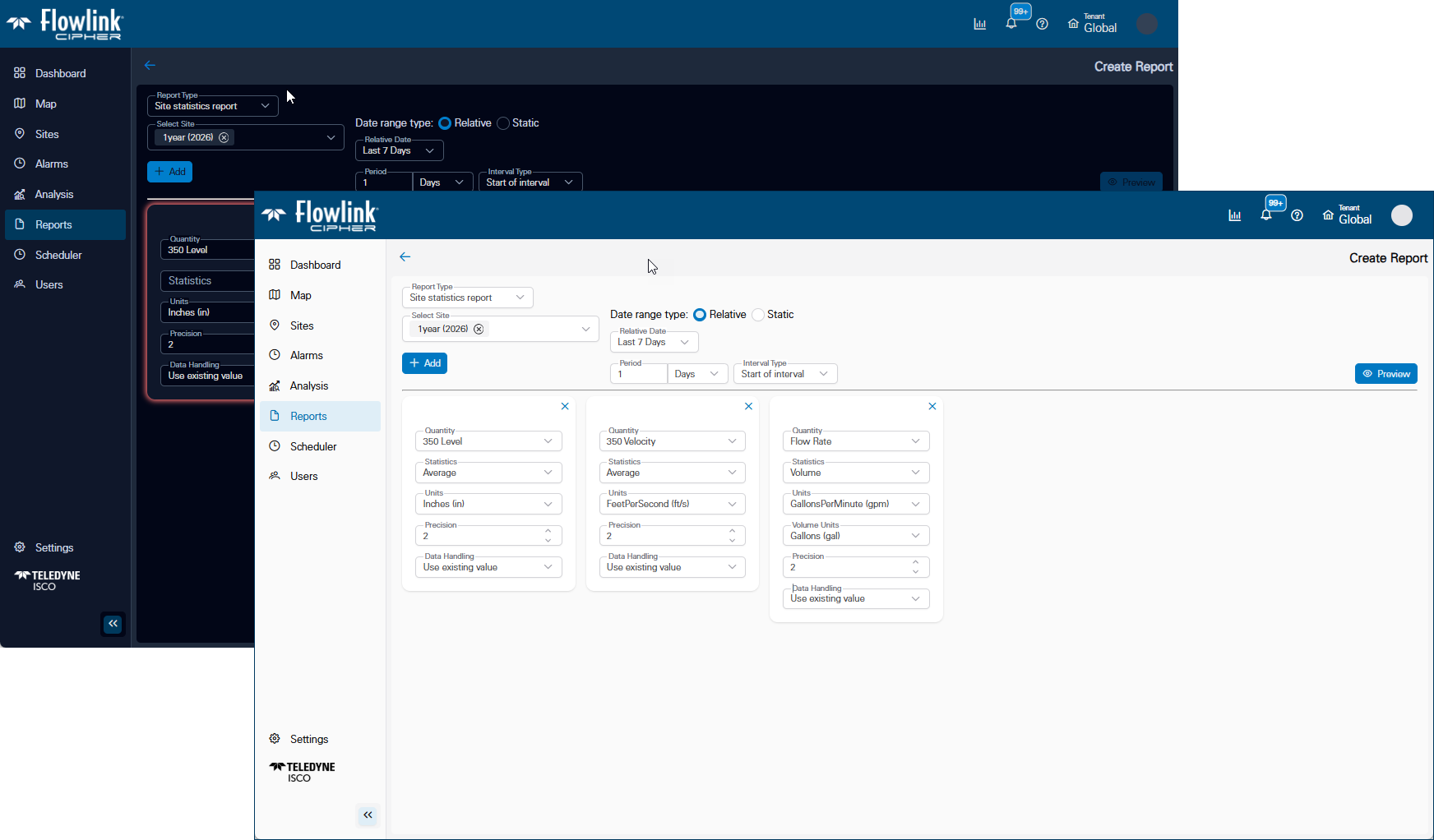
Reports > Create new report: This user experience has been redesigned. The user can now select the site, the quantities and the time period from the same screen. Then Preview the report and easily change the parameters of the report and Preview again as many times as needed before saving and/or downloading the report.
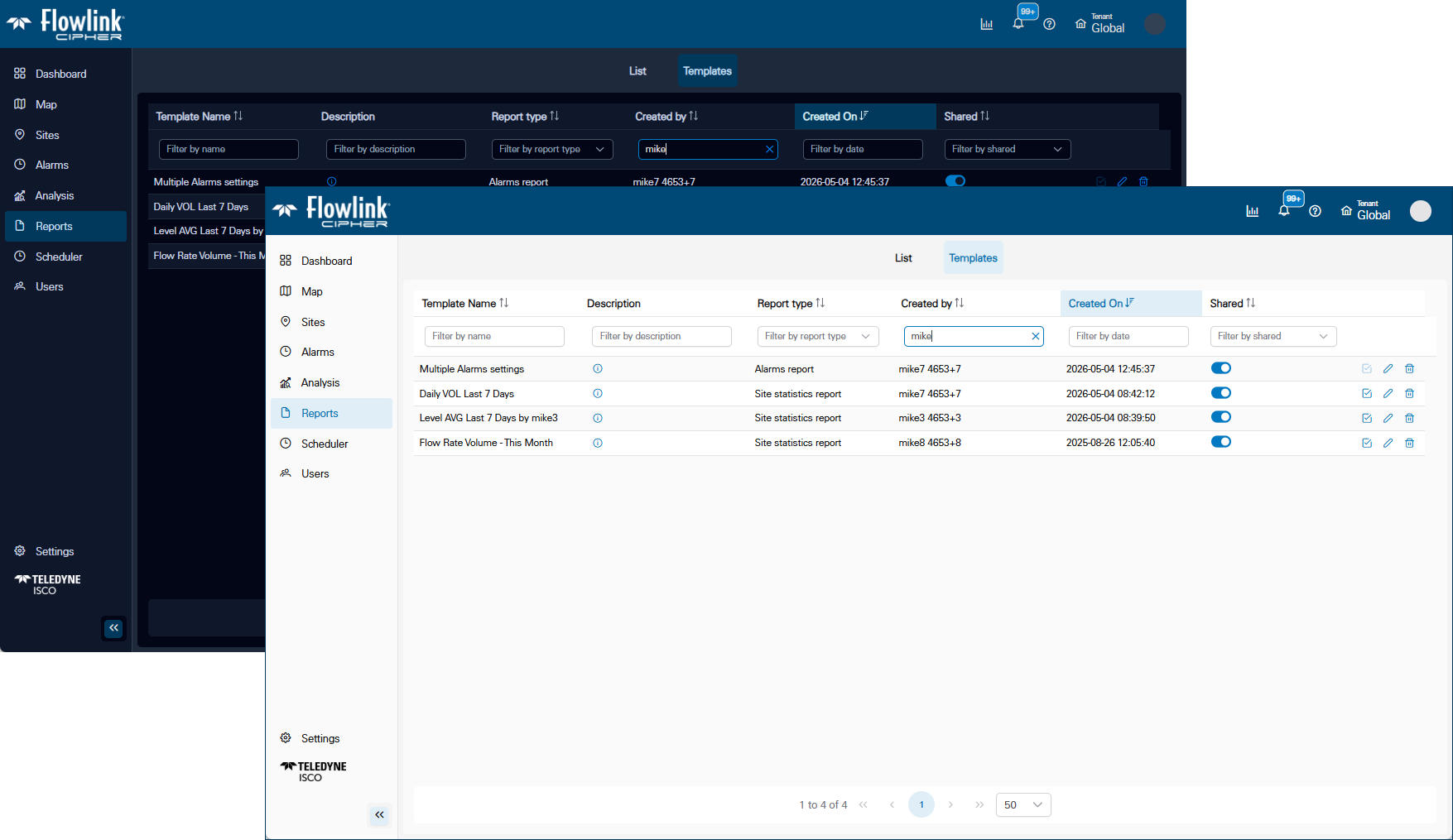
Reports > Templates: The Shared column has been added to provide easier access to the Share option for the report templates. Filtering of the table has been added.
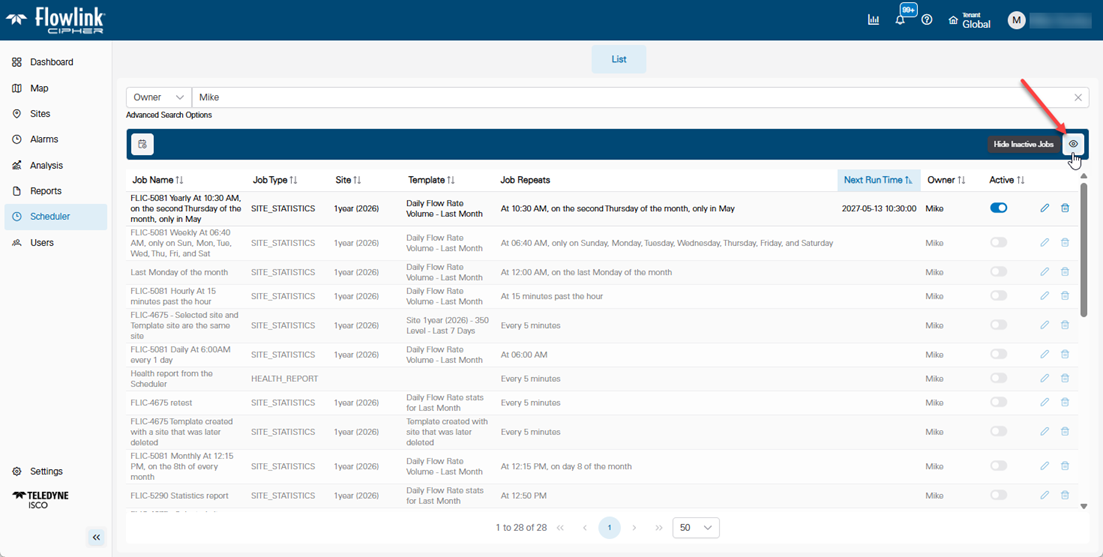
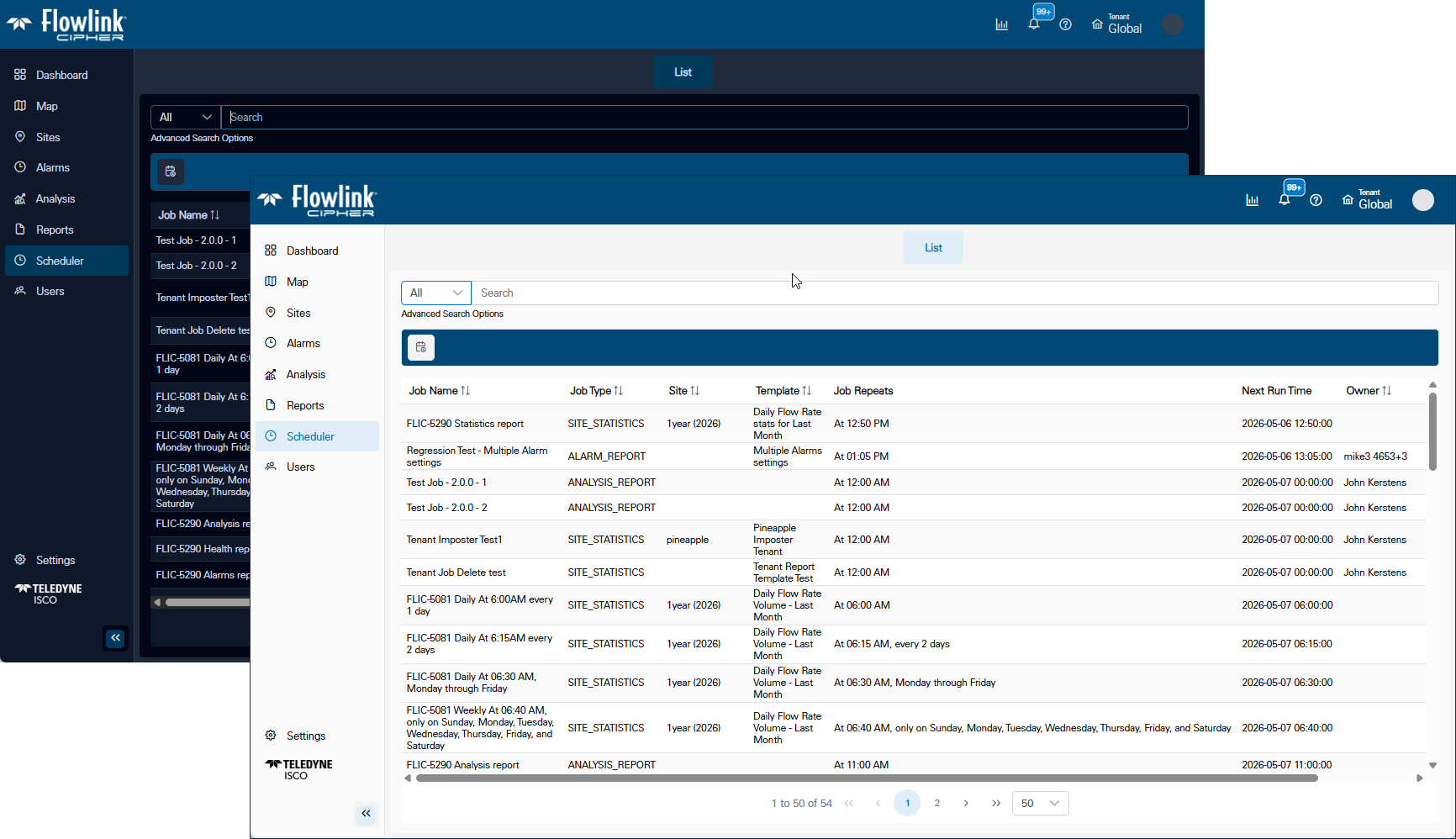
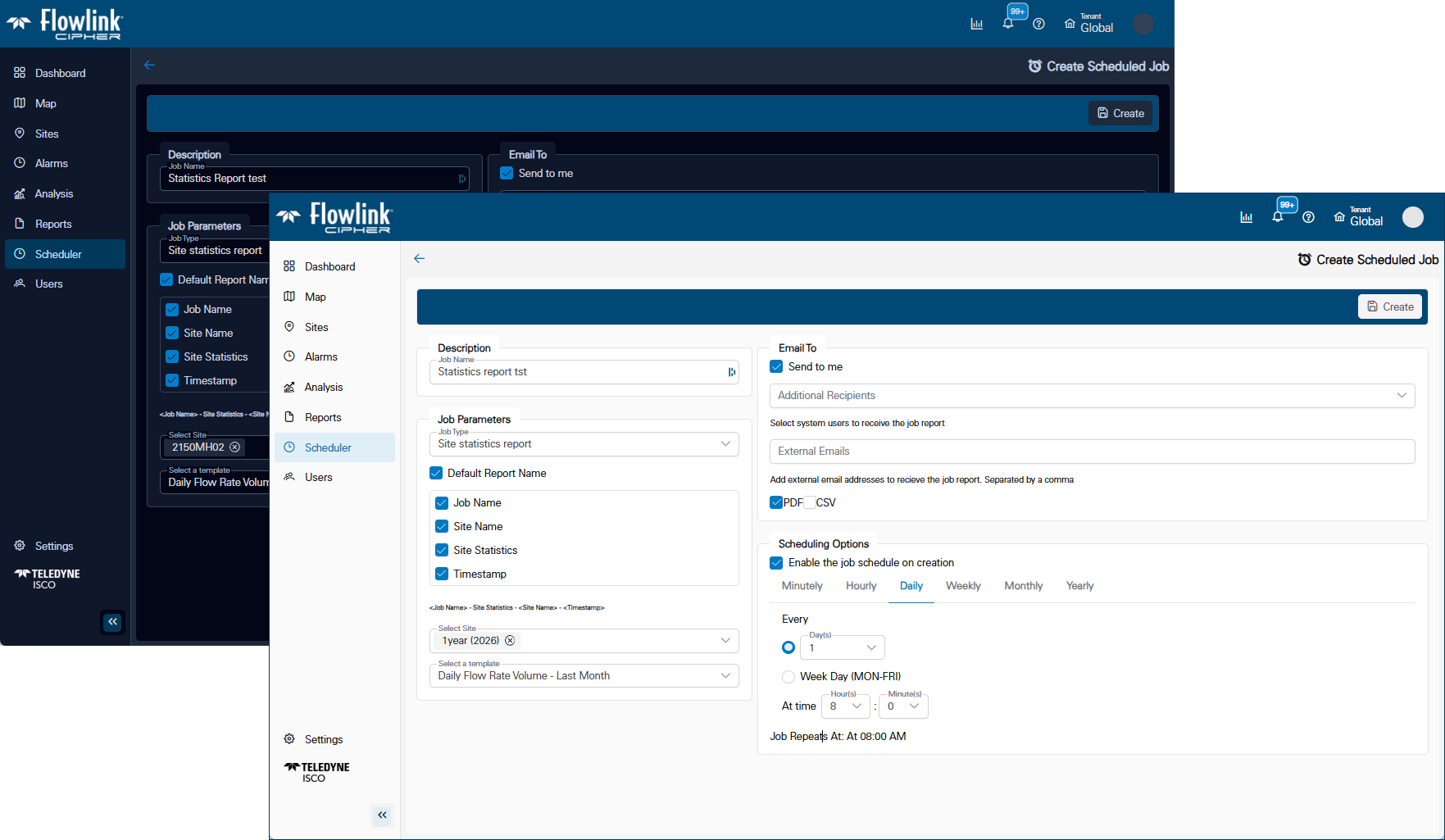
Scheduler > List: The blue function bar has been added with the 'Create new scheduled job' button on the left end.
Scheduler > Create scheduled job: The 'Create' button will not enable until all required parameters are defined.
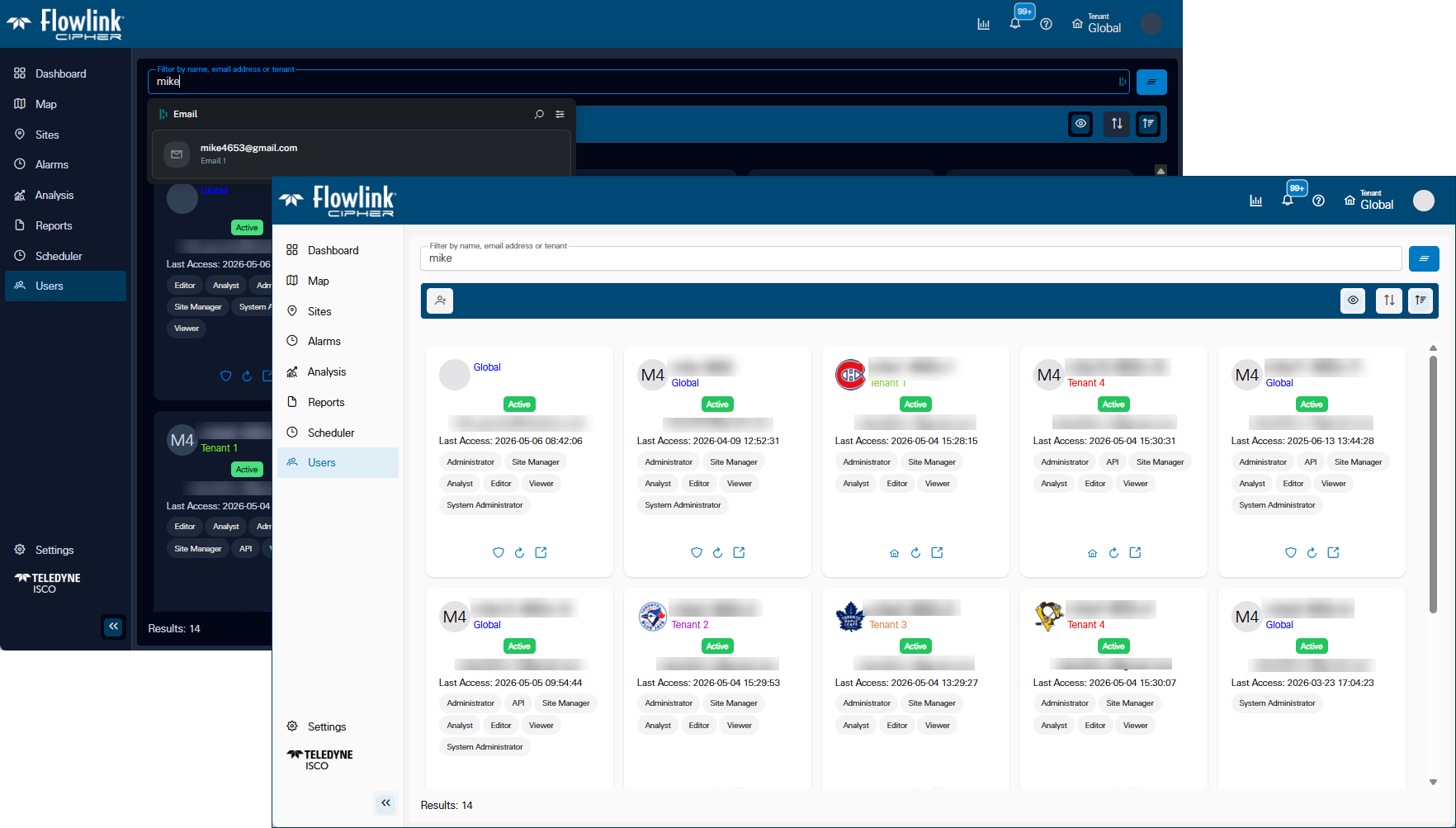
Users > List: A default avatar has been added with the user's initials if the user has not selected an avatar image. A 'Create new user' button is now on the left end of the blue function bar with display options on the right end of the blue bar.
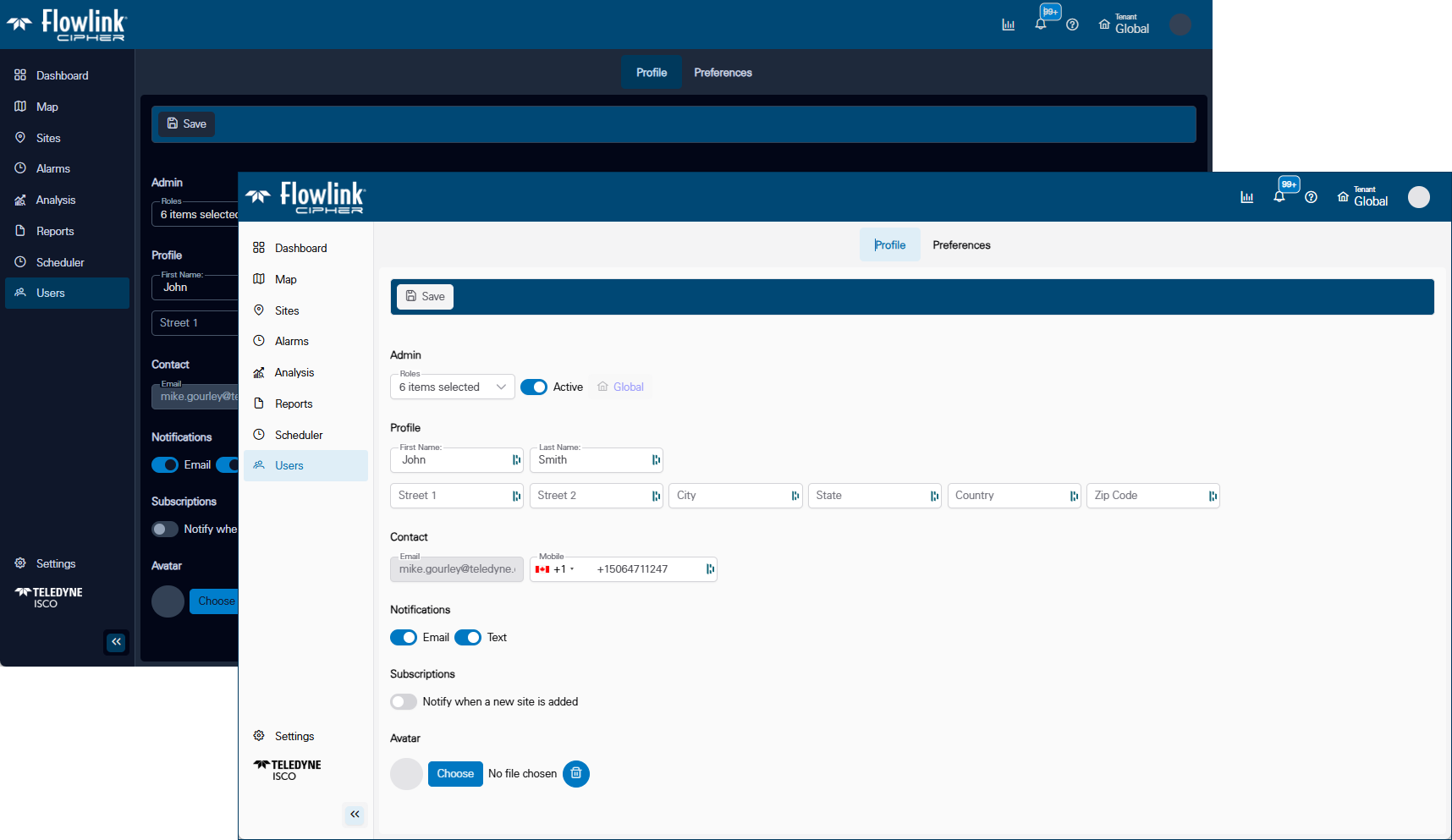
Users > Profile: The Roles tab has been eliminated. The user's roles are now selected in the Profile screen in the 'Admin' section, where the Status and Tenant controls are also provided. The Save button will enable if there are changes made that may need to be saved.
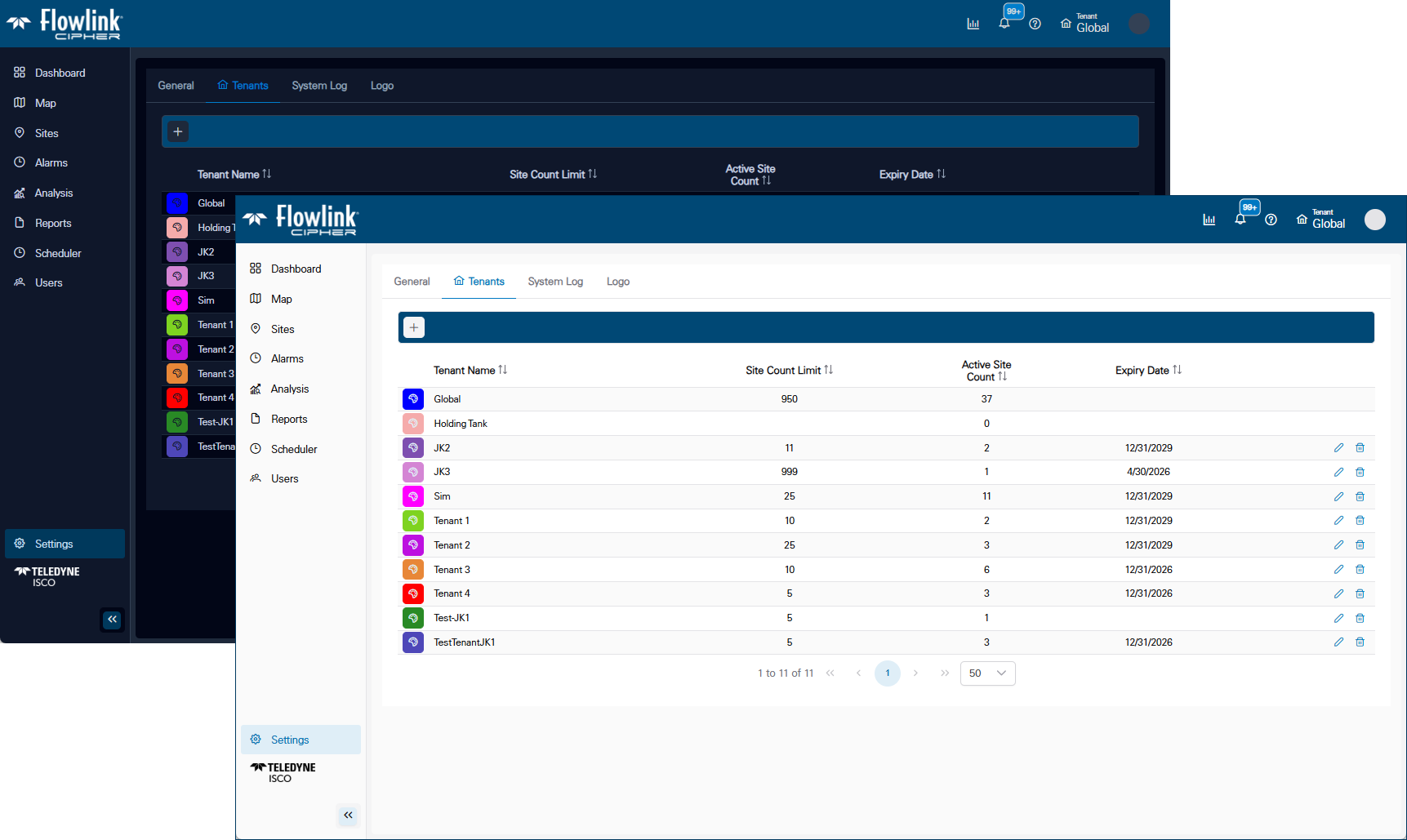
Settings > Tenants: The table design has been updated to match the other tables in the application. The color picker widget has been updated to a newer design.
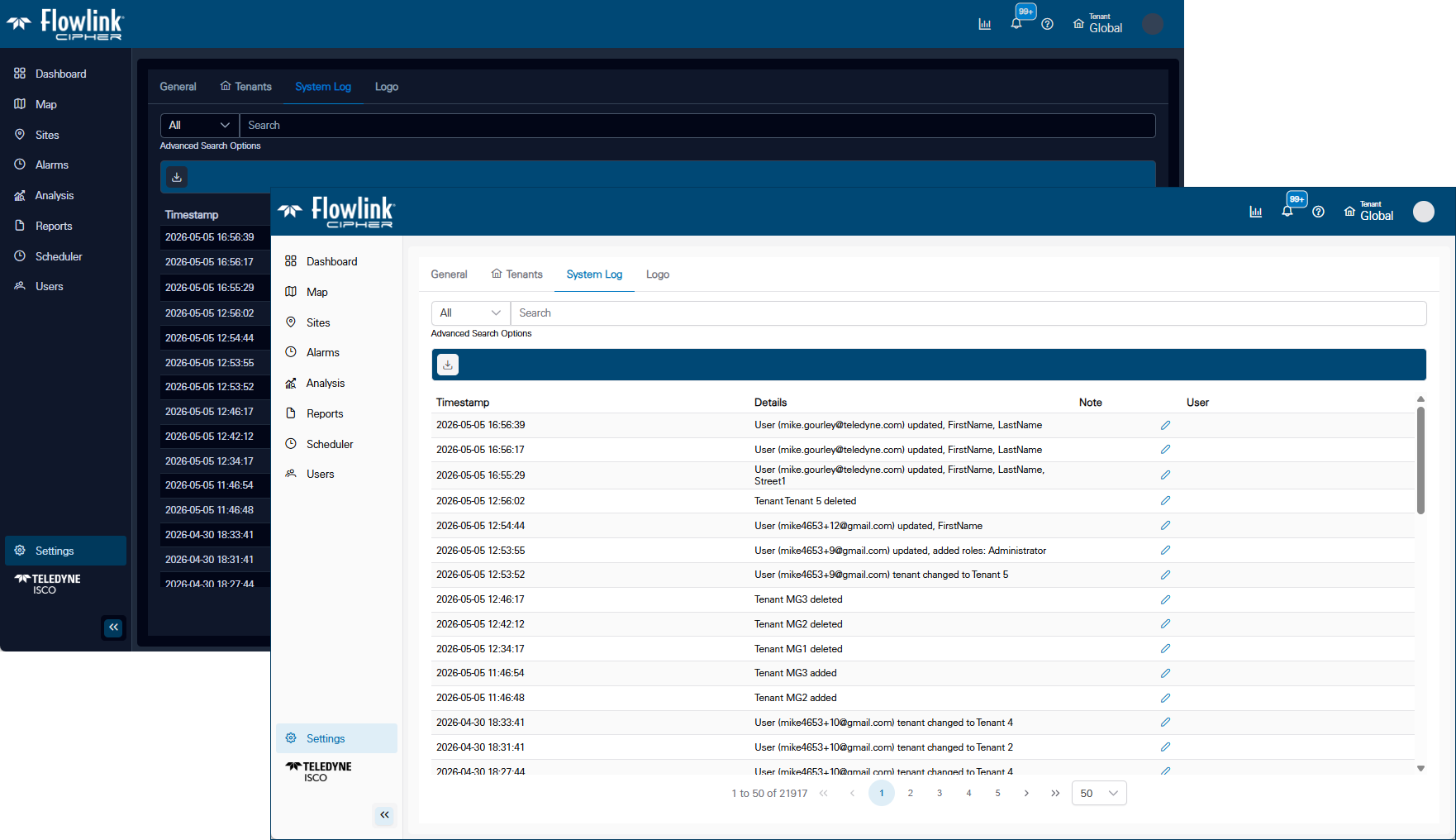
Settings > System Log: A 'Tenant __ added' log entry has been added.
Enhancements
Flowlink Cipher
Maintenance
Flowlink Cipher